 dev.localhostdev.localhost
localhost:8675becomeshttps://local.jenny.com
A tiny native Mac app that puts every dev server behind real https, at a .localhost name or a domain of your own. Start it, stop it and read its log right from the menu bar. nginx runs as you, so none of that asks for a password.
sh <(curl -fsSL https://devlocal.iambrian.com/install.sh)Installs what dev.localhost needs (Homebrew, nginx, mkcert and Node, whichever are missing) and installs the latest release. Read the script first if you like. Run it again any time to update.
brew install nginx mkcert), then run mkcert -install once. dev.localhost also needs Node 24 or later..dmg and drag dev.localhost into Applications.xattr -dr com.apple.quarantine "/Applications/dev.localhost.app"Requires macOS 14, Xcode or just the Command Line Tools, and Node 24.
git clone https://github.com/iambriansreed/dev.local.git && cd dev.local && npm install && app/scripts/bundle.sh release && app/scripts/make-dmg.shThe installer is written to dev.local/app/build/dev.localhost-<version>.dmg. The development guide covers the other scripts.
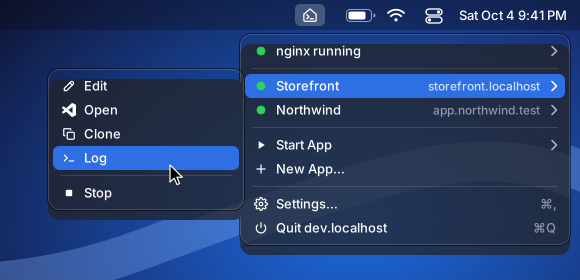
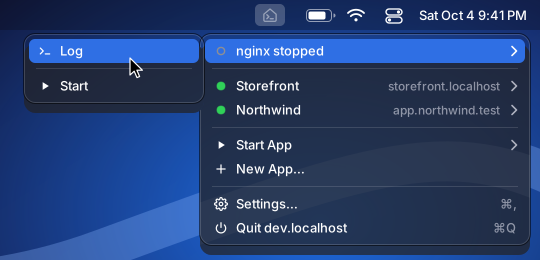
Everything that is running sits at the top of the menu, with a green light, its title and its address. Click one to open it in Chrome. Its submenu edits it, opens its folder in VS Code, clones it as the start of a new app, shows its log, and, last, stops it.
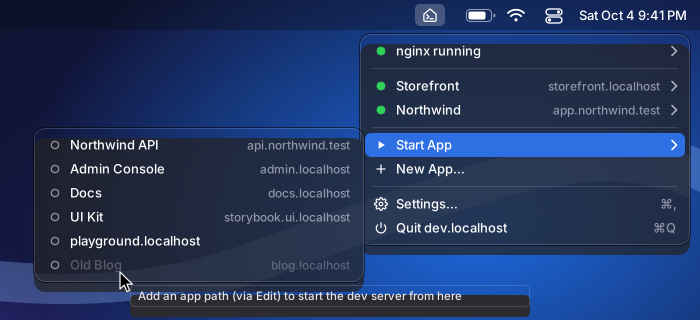
Start App lists everything that isn't running. Pick one and its dev server starts in its folder, with its own command (npm run dev unless you set another). An app with no folder set is listed but greyed out; point at it to see why.
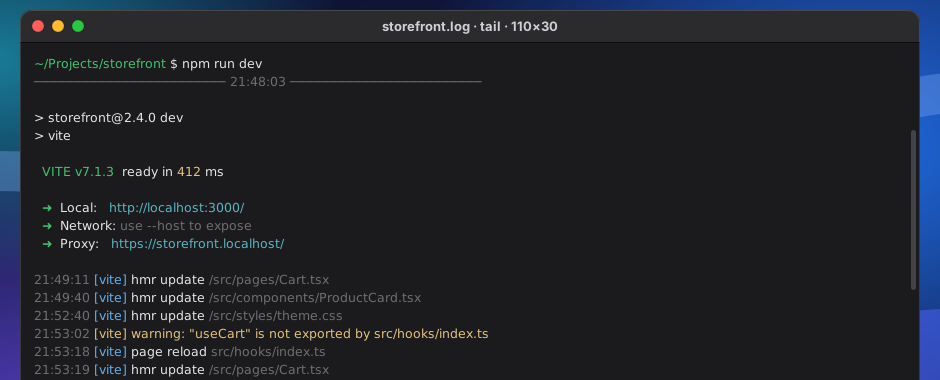
Log opens Terminal on the app's output, colours and all, and keeps following it across restarts. Closing the window stops the tail, never the app. For an app you started yourself in a terminal, the item is Show Log, and it brings that exact Terminal or iTerm2 tab (or VS Code window) to the front.
The first row says whether nginx is running, and its submenu holds its log and the switch. Stopping nginx leaves your dev servers running: their https addresses stop answering, and clicking an app opens http://localhost:PORT instead. nginx runs as you, so starting and stopping it never asks for a password.
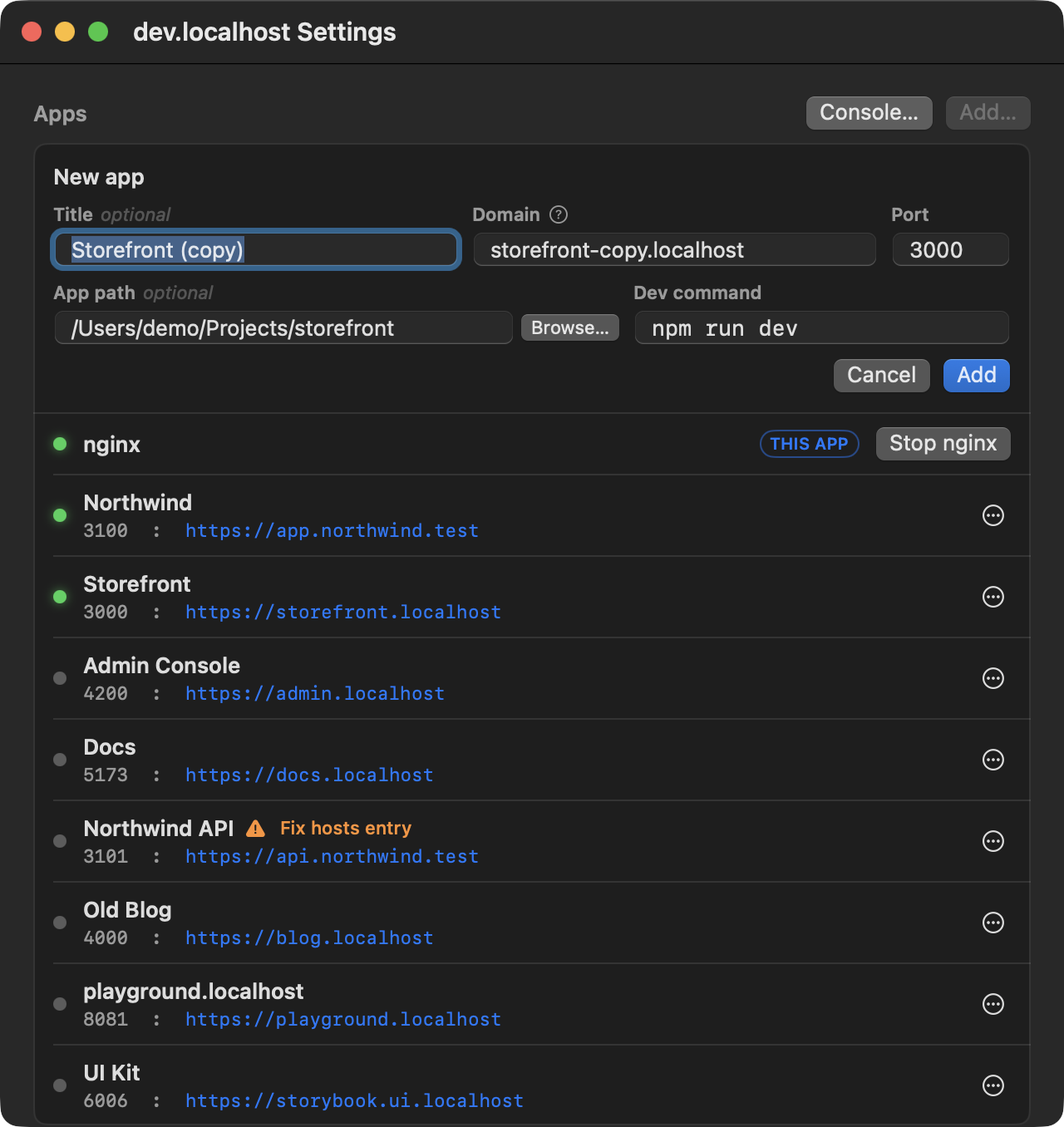
New App… opens Settings with the form ready: a title, the domain (a bare name becomes name.localhost), the port your dev server uses, its folder and its command. Clone fills the same form from an existing app under a free name.
Any .localhost name works with nothing else to set up. A domain of your own, like local.api.example.com, needs a line in /etc/hosts. Saving one that has no line yet opens Terminal right away, which shows the exact lines it will change and then asks for your Mac password, since /etc/hosts belongs to the system. Until the line is there, its row says Fix hosts entry, which opens the same Terminal again.
If you already run the dev.localhost server from a terminal, the app attaches to it instead of starting its own, and quitting the app leaves it running.